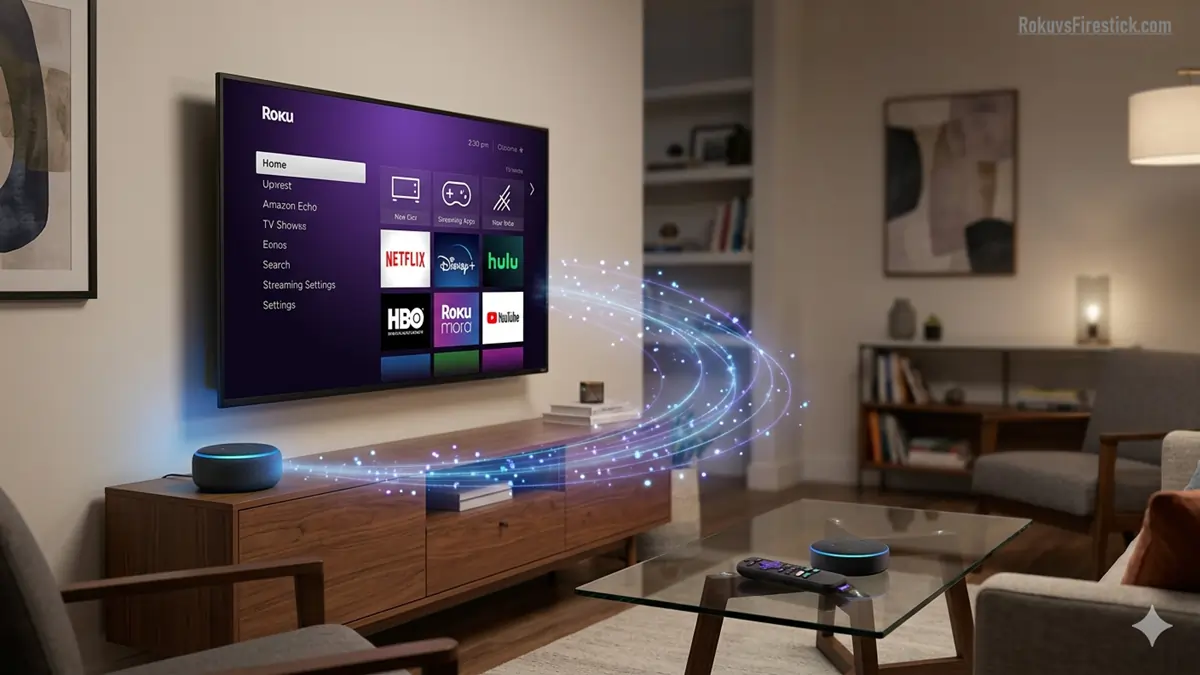
Now, you don’t need to get up to pick up the remote, because you can control your Roku device using just your voice, without touching the remote.
2026 brings something new for you: the integration between Amazon and Roku has become more advanced than ever. With the arrival of Alexa+, you can do far more than just change channels; you can even perform complex searches.
So, pay close attention to this step-by-step guide to make your entertainment system completely hands-free.
Requirements for Setup
Before you begin, ensure that you have the following ready:
- Roku Account: Your Roku TV or streaming stick must be activated.
- Alexa Device: You must have an Amazon Echo, Echo Dot, or the Alexa app.
- Common Wi-Fi: Both devices (Roku and Alexa) must be connected to the same Wi-Fi network.
- Roku OS 12.5 or Higher: Ensure that your Roku software is up to date.
How To Connect Roku to Alexa?(Step-by-Step)
Now, this connection process is very easy-just follow the steps below:
Step 1: Search for the ‘Roku Skill’ in the Alexa app
Open the Amazon Alexa app on your smartphone. Click on the ‘More‘ tab in the bottom right corner, and then select ‘Skills & Games‘. Type “Roku” into the search bar.
Step 2: Enable the Skill
Click on the official Roku Skill within the search results. Here, you will see an “Enable to Use” button; tap on it.
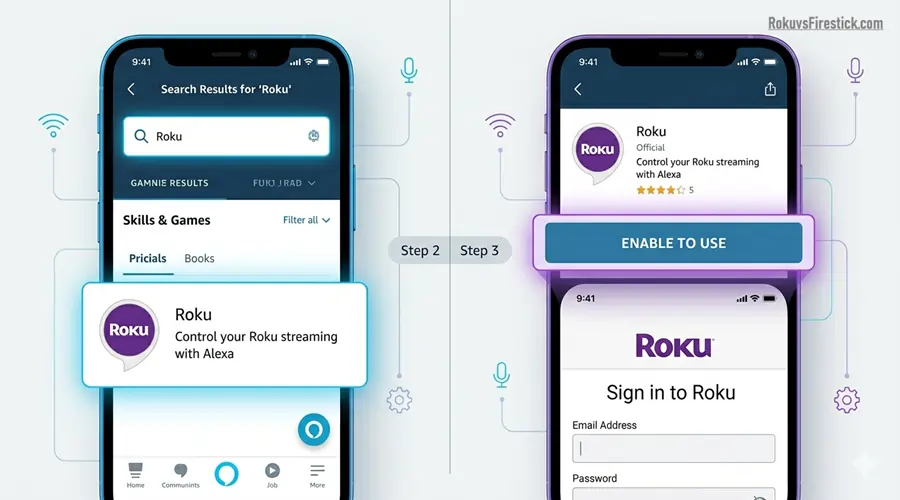
Step 3: Link Your Roku Account
A login page will now open before you. Enter your Roku account’s email address and password here. After logging in, select the devices you wish to control using Alexa.
Step 4: Discover Devices
Once your account is linked, Alexa will prompt you to discover devices. This process may take up to 45 seconds. Once the device is found, select it and click ‘Done’.
Alexa+ AI and Roku: New Features For 2026
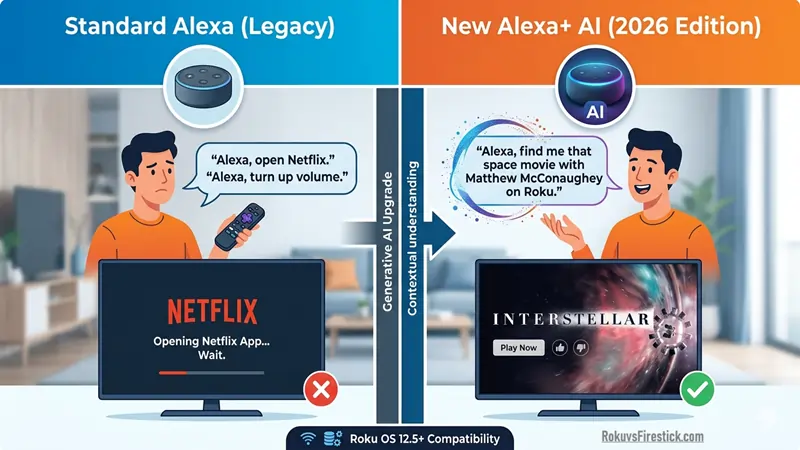
Now that Amazon has introduced Alexa+ (Generative AI), using it with Roku has become more “Natural” than ever before.
- Contextual Search: You no longer need to remember the exact title of the movie. You can say, “Alexa, find me that space movie with Matthew McConaughey on Roku.” (It will instantly locate ‘Interstellar’).
- Personalized Suggestions: “Alexa, I’m in the mood for a thriller; find something on Roku that I haven’t watched yet.” Alexa will provide suggestions based on your viewing history.
- Smart Home Integration: You can accomplish everything with a single command. “Alexa, it’s movie time.” (This will dim your smart lights, turn on Roku, and launch Netflix).
Magical Voice Commands To Use With Alexa
Now that your setup is complete, you can use these methods (English commands work best for US users):
- Power Control: “Alexa, turn on Roku.” or “Alexa, turn off the living room TV.”
- Media Control: “Alexa, pause on Roku.” or “Alexa, resume.”
- App Launch: “Alexa, open Netflix on Roku.”
- Search Content: “Alexa, find action movies on Roku.”
- Volume Control: “Alexa, set volume to 5 on Roku.”
Pro Tip: If you want to utilize new AI features, be sure to read our previous article, “How to Enable Alexa+ Voice Commands (2026 Guide),” where we discuss the future of voice technology.
Firestick vs. Roku: Which Is Better With Alexa?
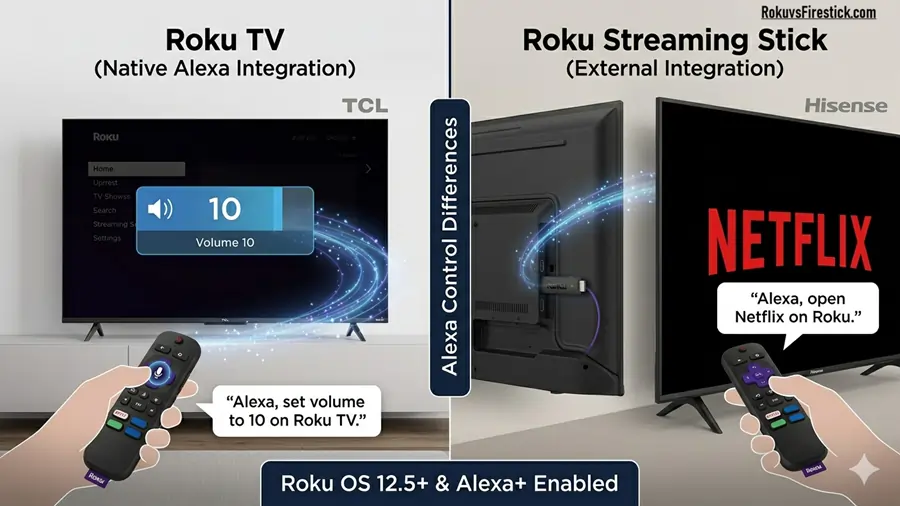
Since you are a savvy user, you likely already know that Alexa is Amazon’s proprietary product. Consequently, it is more deeply integrated with the Firestick. However, in 2026, Roku has also significantly improved its API.
If you are torn between the two, be sure to check out our most popular article, Roku vs. Firestick 2026: Ultimate Comparison Guide, to help you make the right decision.
Common Issues and Solutions (Troubleshooting)
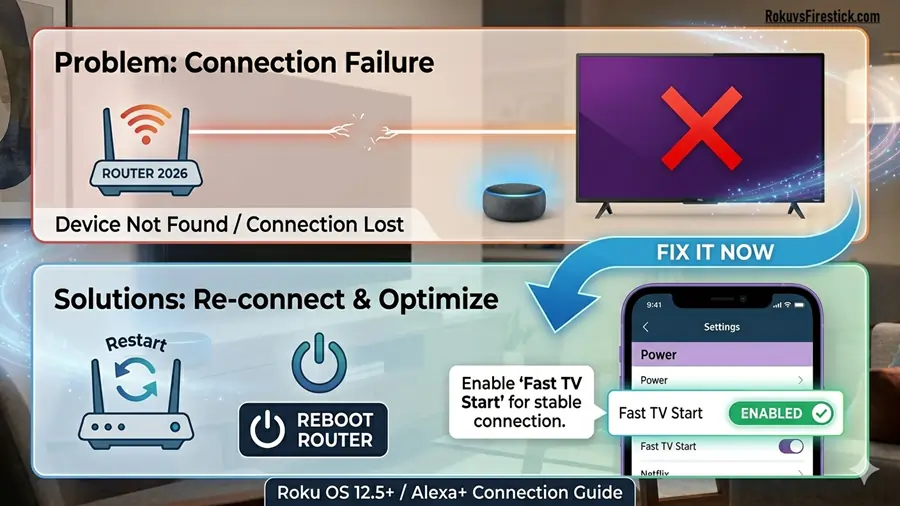
- Device Not Found: Ensure that your Roku and Alexa are linked to the same email ID; if not, at the very least, ensure they are connected to the same Wi-Fi network.
- Command Not Working: Go to the Alexa app, disable the “Roku Skill” once, and then re-enable it.
- Slow Response: If the response is slow, restart your router or enable the ‘Fast TV Start’ mode on the Roku.
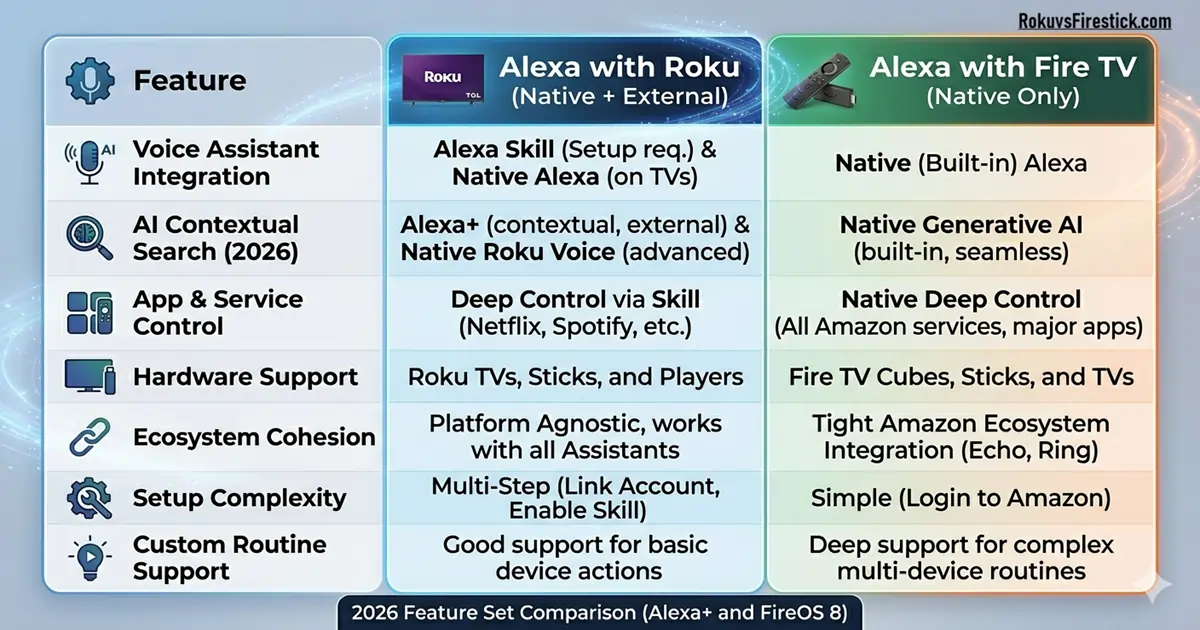
Comparison: Alexa with Roku vs. Firestick
| Feature | Alexa+ Firestick | Alexa+ Roku |
| Integration | Native (Amazon’s Own) | Third-Party (via Skill) |
| Setup Ease | Very Easy (Pre-linked) | Easy (You need to enable the Skill) |
| AI Speed | Fastest | Very Fast (After the 2026 Update) |
| Customization | Less | More (Roku’s Own Interface) |
Limitations of Using Alexa With Roku
Here is a clear breakdown of what works and what doesn’t when using Alexa with Roku:
- Restrictions on Netflix voice control: You can’t lauch Netflix directly or control playback (pause/play) on Roku via Alexa (due to API limitations on both sides).
- No direct keyboard input: You can’t use Alexa if you wish to type text directly onto the screen.
- Music playback limitations: Direct music search commands (such as Spotify on Roku via Alexa) sometimes fail to sync correctly.
How to rename your Roku device in the Alexa app (for easy voice commands)
This feature is particularly useful when you have multiple TVs in your home, as it prevents Alexa from getting confused. Here is a step-by-step guide to changing the name:
- Why it matters: If your device’s default name is “55-inch TCL Roku TV,” it becomes difficult to say every time.
- Steps to change your device’s name:
- Open the Alexa app, then go to the Devices tab.
- Select your Roku TV from the list of devices.
- Click the gear (settings) icon at the top right and edit the name (for example, “Living Room” or “Bedroom Roku”).
Conclusion
In 2026, the combination of Roku and Alexa takes your home entertainment to new heights. This setup is not only cool but also incredibly useful for those who want to manage their smart home with ease. Whether you live alone or with family, you will love the seamless hands-free experience.
Have you completed your setup? If you encounter any error codes, please let us know in the comments below. We will resolve your issue within 24 hours.
FAQs (Frequently Asked Questions)
Q1: Can I control Roku without Alexa?
Yes, you can use the Roku mobile app or the Roku voice remote, but Alexa offers a “hands-free” experience.
Q2: Is there a monthly fee for this?
No, linking Roku and Alexa is completely free. However, Amazon may require a subscription for certain advanced AI features of Alexa+.
Q3: Can I link multiple Roku devices to a single Alexa?
Yes, you can link as many Roku devices as you like; just give them different names (such as ‘Bedroom Roku’, ‘Living Room Roku’).