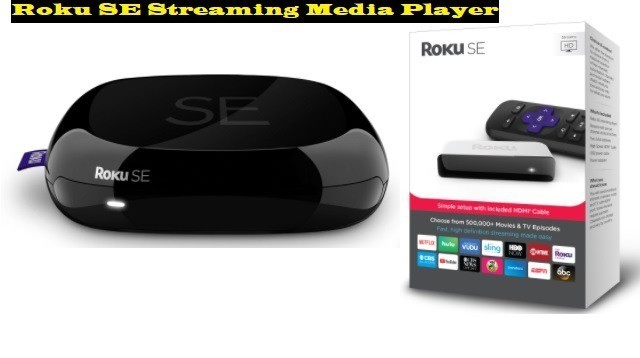
AirPlay is a great feature from Apple that allows you to wirelessly stream or mirror videos, music, photos, and screens directly from your iPhone, iPad, or Mac to your Roku device. In the United States (US), most new Roku models support AirPlay 2, making setup very easy.
How To AirPlay on Roku?
Here’s the complete process for setting up and using AirPlay:
- Before setting up AirPlay (prerequisites)
Before you can start using AirPlay, you need to make sure both devices are ready:
- AirPlay Compatibility: Ensure your Roku device (such as a Roku TV, Roku Streaming Stick, or Roku Ultra) supports AirPlay 2. You can confirm your model on Roku’s official website.
- Same Wi-Fi Network: Your Apple device (iPhone, iPad, or Mac) and your Roku device must be connected to the same Wi-Fi network.
- Latest Software: Make sure both your Roku and Apple device have the latest software updates installed.
- Enable AirPlay on Roku
First, you need to activate the AirPlay feature in your Roku device’s settings:
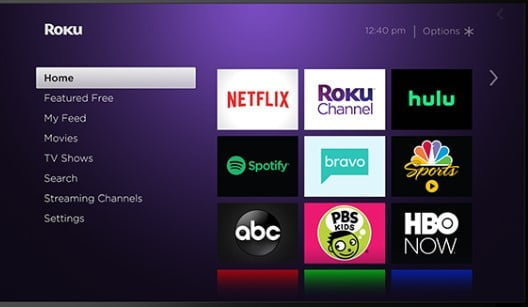
- Go to the Roku Home Screen: Press the Home button on your Roku remote.
- Open Settings: Scroll down in the left-hand menu and select Settings.
- AirPlay and HomeKit: In the Settings menu, select the Apple AirPlay and HomeKit option.
- Turn on AirPlay: Now, go to the AirPlay option and make sure it’s set to On.
- Access Settings: You can also choose who can use AirPlay and whether you’ll require a code every time. For security, you can set this to “First Time Only” or “Require Code.”
- How to Use AirPlay from iPhone/iPad
Once your Roku is AirPlay-ready, you can stream content from your Apple device:
A. Stream Video or Music (Casting)
- Open content: Open the app (e.g., YouTube, Apple TV+, Photos) you want to stream from on your iPhone or iPad.
- Find the AirPlay icon: Look for the AirPlay icon (rectangle with an arrow) within the video/music playback controls and tap it.
- Select Roku: Select your Roku device’s name from the list of available devices.
- Start Streaming: The content will immediately begin playing on your TV. You can control playback using your Apple Device.
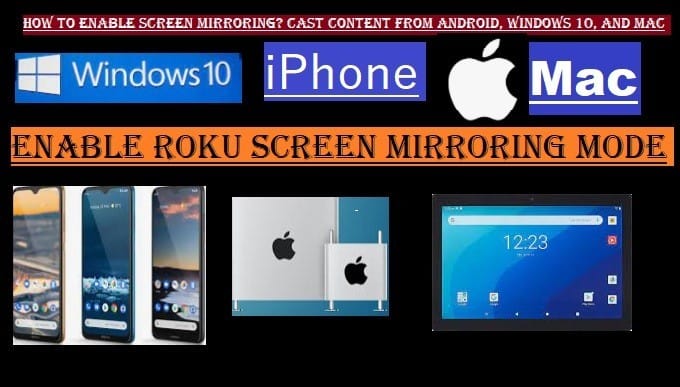
B. Screen Mirroring
Screen Mirroring displays your iPhone/iPad’s entire screen on your Roku TV.
- Open Control Center: To open Control Center on your iPhone/iPad:
- For iPhone X or later and iPad: swipe down from the top-right corner of the screen.
- For other iPhone models: Swipe up from the bottom of the screen.
- Screen Mirroring: Tap the screen mirroring icon (two overlapping rectangles).
- Select Roku: Select your Roku device’s name from the list.
- Enter code (if required): If a code appears on your Roku TV, enter it on your Apple device.
- Stop Mirroring: To stop mirroring, return to Control Center, tap the Screen Mirroring icon, and then select Stop Mirroring.
- How to Use AirPlay From a Mac
- Wi-Fi and Updates: Make sure your Mac and Roku are on the same Wi-Fi network and that your Mac’s macOS is updated.
- Menu Bar Icon: Click the AirPlay icon (rectangle with an arrow) in the menu bar at the top of your Mac’s screen.
- If you don’t see the icon: Go to Apple menu > System Settings/System Preferences > Displays and check “Show mirroring options in the menu bar when available” in the “AirPlay Display” menu.
- Select Roku: Select the name of your Roku device from the drop-down menu.
- Mirroring Mode: You can choose whether you want to mirror your Mac’s screen or use the Roku as a Separate Display (a separate extended screen).
Key Tips
- Network Stability: A strong and stable Wi-Fi connection is essential for AirPlay to work smoothly.
- Reset AirPlay: If connection problems occur, try restarting both your Roku and Apple device.
AirPlay Content From Photos and Streaming Apps
Here are the steps to stream photos and movies/shows from Apple TV+:
How To Airplay Specific Content
- Streaming Photos from iPhone/iPad
If you want to show your vacation photos or family albums on your larger Roku TV:
- Open the Photos app: Open the Photos app on your Apple device.
- Select a Photo: Open the video or photo you want to stream.
- Tap the Share icon: Tap the Share icon (the square with an upward-facing arrow) in the lower-left corner of the screen.
- Select AirPlay: Choose AirPlay from the list of options.
- Select Roku: Select the name of your Roku device.
- Start Watching: The photo will immediately appear on your Roku TV. You can move to the next photo on the TV by swiping on your phone.
- Streaming a movie/show from Apple TV+
If you are watching content through the Apple TV+ app:
- Open the TV app: Open the TV app on your Apple device and find the movie or show you want to watch.
- Start Playback: The video starts playing.
- Tap the AirPlay icon: Tap the AirPlay icon (rectangle with an arrow) on the video playback screen (often in the top or bottom corner).
- Select Roku: Select your Roku device from the list of available devices.
- Control: The video will now play on the Roku TV, and you can use your Apple device as a remote control.
Troubleshooting if AirPlay isn’t working

If you are trying to use AirPlay and it’s not connecting to your Roku device, here are some of the most common solutions you can try:
- Check Network and Connectivity
- Same Wi-Fi Network: Make sure your Apple device (iPhone, iPad, Mac) and Roku device are connected to the same Wi-Fi network. If you have both 2.4 GHz and 5 GHz networks, make sure both devices are on the same band.
- Internet Speed: A stable and fast internet connection is required for streaming. A weak Wi-Fi signal may cause AirPlay to stutter or stop working.
- Router Distance: Make sure your Roku and Apple device are close to the Wi-Fi router.
- Restart and Update
- Restart Roku: Turn Roku off completely, then turn it back on. You can do this via Settings> System > System Restart, or simply unplug the power cord for 5 seconds and plug it back in.
- Restart Apple Device: Restart your iPhone, iPad, or Mac.
- Software Update: Make sure both your Roku OS and your Apple device’s iOS/macOS are updated to the latest version.
- Check Roku AirPlay Settings
- AirPlay is enabled: On Roku, go to Settings > AirPlay and HomeKit and make sure AirPlay is set to ‘On’.
- Access Settings: In AirPlay settings, check the ‘Access’ option. If it’s set to ‘Require Code’ and you’re not entering a code, it won’t connect. Temporarily, you can try setting it to ‘First Time Only’.
- Device Blocklist: Check if you’ve accidentally blocked your Apple device on Roku. If so, unblock it.
- Check Firewall and VPN
- Firewall: If you’re using a Mac, check that your Firewall isn’t blocking AirPlay connections. You may need to enable it in System Settings > Network > Firewall Settings.
- VPN: If you’re using a VPN (Virtual Private Network) on your Apple device, try turning it off. VPNs often interface with the local network connections.
Useful tips to improve the Roku AirPlay Experience
- Tips for Video Quality and Performance
- Prioritize Network: If possible, connect your Roku device to a 5 GHz Wi-Fi network (if your router and Roku support it). The 5 GHz band is less congested and provides better speeds and less latency during streaming.
- Close Other Apps: Before starting AirPlay, close all background apps on your Apple device that are not being used. This improves device performance and allows more resources to be focused on AirPlay.
- Roku Placement: Don’t hide your Roku streaming device behind the TV so that it completely blocks the Wi-Fi signal or the signal from the Apple device. Place it in a slightly open area.
- Tips for Convenience and Security
- Room Assignment: If you have multiple Apple and HomeKit devices, assign your Roku device to a specific room (e.g., Living Room, Bedroom) in the Roku settings. This makes it easier to identify it in the AirPlay list on your Apple devices.
- Customize Security Settings:
- If you live alone at home and want to AirPlay quickly, you can set ‘Access’ to ‘Everyone’ in the AirPlay settings.
- If you’re using it in an Airbnb or a shared space, it’s best to set it to ‘Require Code’ for security.
- Difference Between Mirroring and Casting:
- Casting: AirPlaying directly from apps (like Netflix, YouTube) often provides better quality because Roku streams the content directly from the internet.
- Mirroring: This mirrors your Apple device’s entire screen to Roku. If you only want to watch videos, it’s better to use direct casting.
- Take Care of Your Battery
- Turn off Low Power Mode: If ‘Low Power Mode’ is on your iPhone or iPad, it may slow down data transfer speeds during AirPlay. Keep it off for optimal performance.